
Why Create a Shared Calendar in Microsoft Teams?
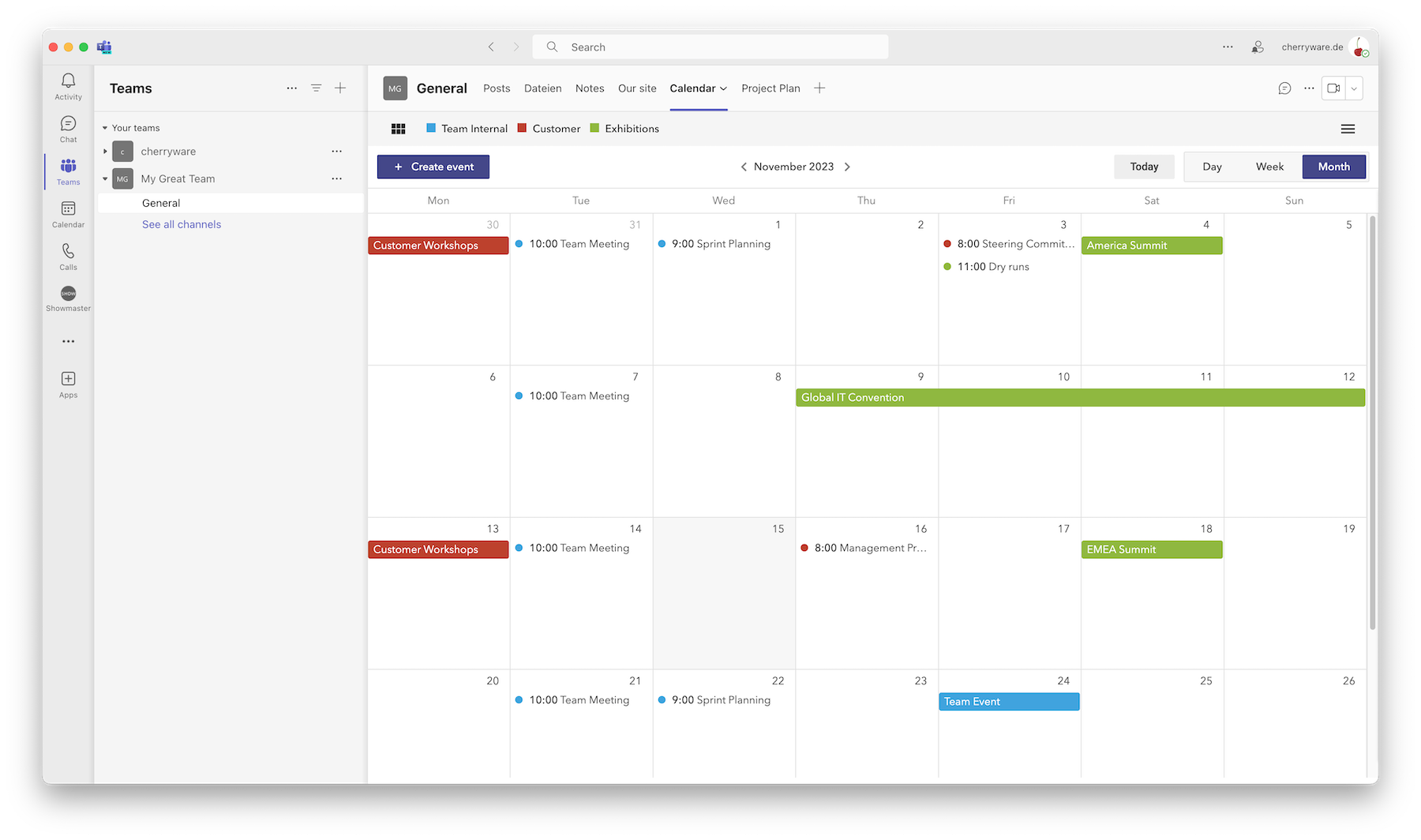
Microsoft Teams has long outgrown its role as a chat tool. For many teams, it is the central digital hub for daily collaboration – and that is exactly why it makes sense to manage your shared calendar where your team already works.
Key benefits at a glance:
- No switching between different applications
- No cluttered personal calendars with project events that are not always relevant to every team member
- Sub-calendars for better organization
- Many use cases: project calendars, shift planning, vacation calendars, PTO, absence planning, and more
1) Install the Shared Calendar App
Installing Shared Calendar in Microsoft Teams takes less than a minute and requires no separate account or additional login.
-
Click the button below to add Shared Calendar directly to Microsoft Teams:
 Add in Microsoft Teams
-
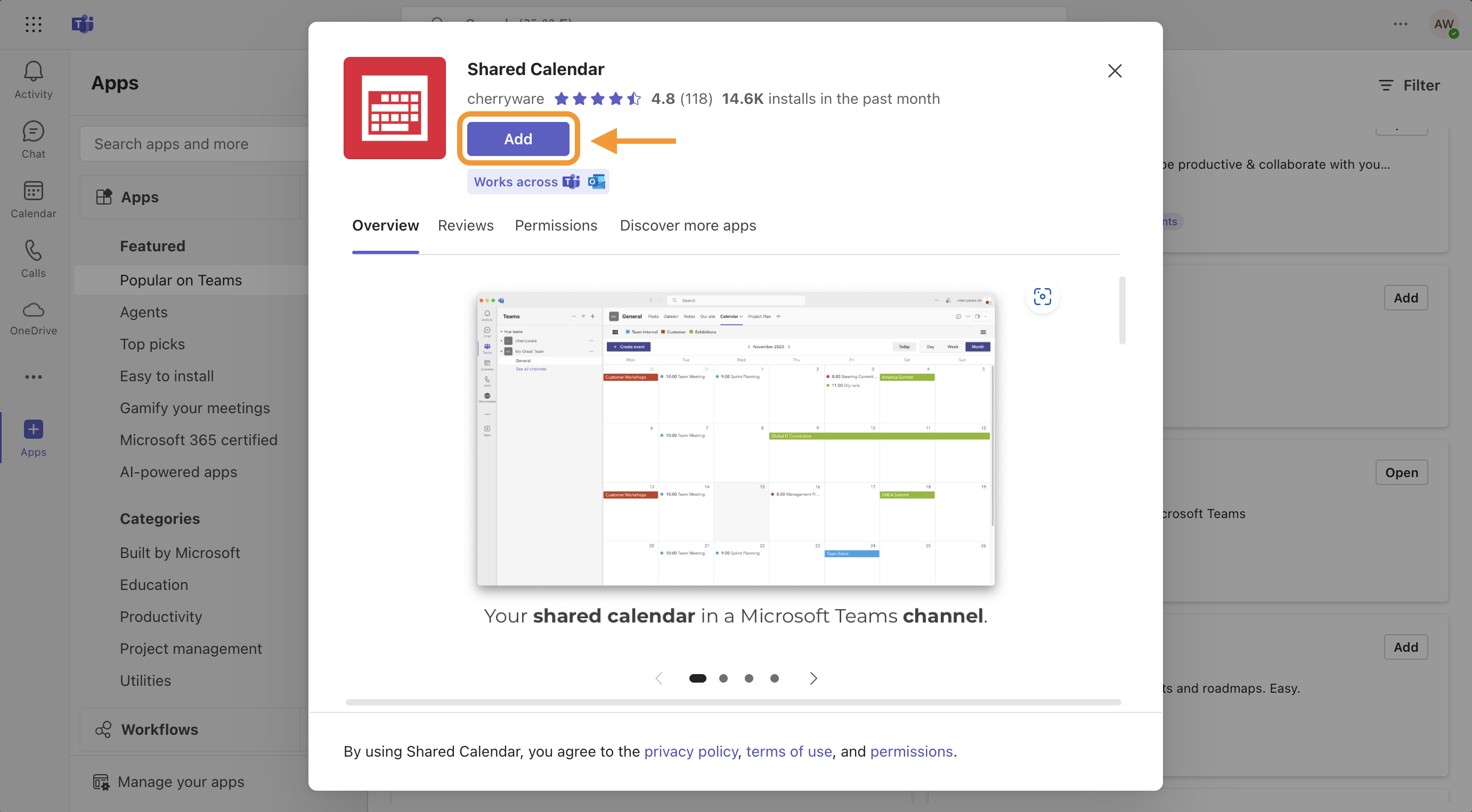
In the dialog that appears, click Add.
-
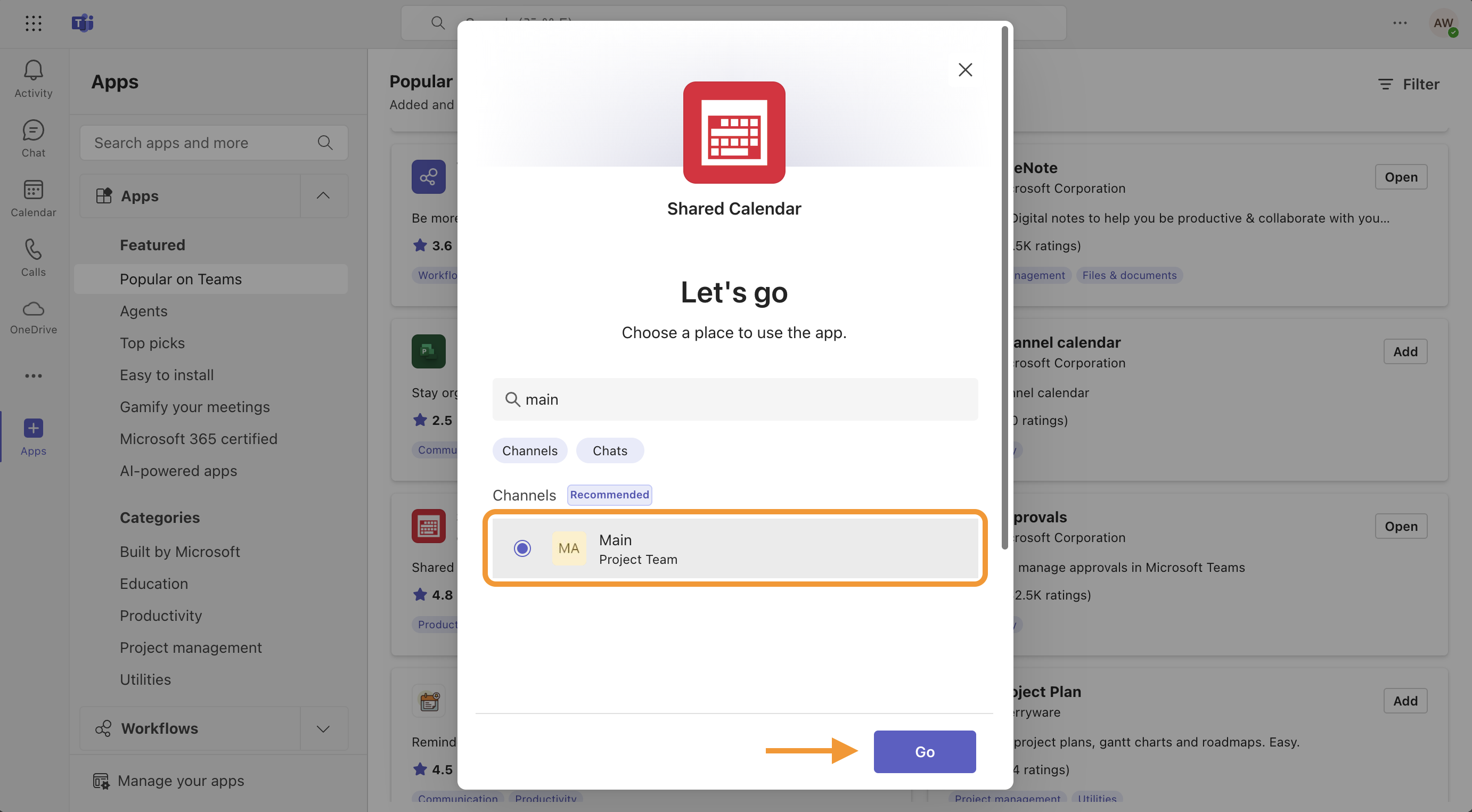
Select a channel or chat where you want to use Shared Calendar, then click Go.
-
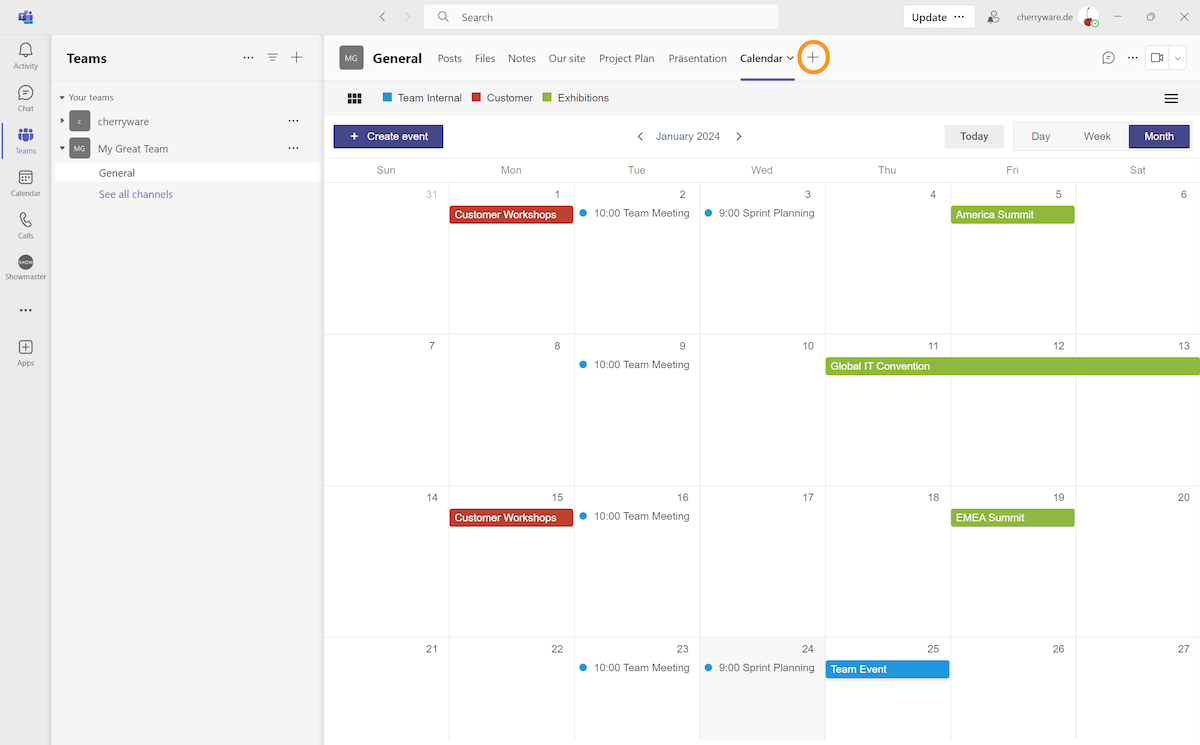
Want to add Shared Calendar to another channel? Simply click the plus icon in the channel tab bar to add the app again – each channel gets its own independent calendar.
2) Create Your First Calendar
When creating a new shared calendar, you have two options:
- Create a new calendar – a blank calendar to start from scratch.
- Mirror an existing calendar – if a calendar already exists in another channel, it can be referenced here and will stay in sync automatically.
For first-time use, we recommend the first option.
3) Add Events and Sub-Calendars
Next, events and sub-calendars are added to the calendar.
Adding Events
Events can be created in three easy ways: by double-clicking on the desired day or time slot, by dragging across a time range, or via the + Event button.
Creating Sub-Calendars
Sub-calendars are great for grouping events and separating them by color. Events belonging to a sub-calendar are also displayed in their own row in the timeline view. To create a new sub-calendar, click the six-tile menu icon in the top left, then select Sub-calendars and Add sub-calendar....
Adding Holidays
Just like sub-calendars, public holidays from any country can be added to the calendar.
4) Collaborate With Your Team
Microsoft Teams provides an ideal environment for collaborating on a shared calendar. The calendar is visible to all team members in the channel and stays in sync. If the calendar is also mirrored to the browser via the Mirror feature, it will remain up to date there as well.
A PDF export is always available whenever needed.
Tips & Best Practices
- Use different colors with sub-calendars to visually separate events and topics. Sub-calendars can also be toggled on and off with a single click.
- Instead of creating recurring events one by one, use recurring events. Defining exceptions is also straightforward.
- For collaboration with external partners, share an external link. This is often easier than inviting external users as guests into your Microsoft tenant.
- If not every user should have write access, use password protection. This password can also be used outside of Microsoft Teams in the browser.
Wrap-Up
With Shared Calendar by Cherryware you have an easy-to-use tool that integrates a clean monthly calendar view directly into your Microsoft Teams channel.